Bitrix24 is often mistaken for just another CRM or a simple checklist app, but that assessment misses the mark entirely. It is an operational ecosystem. If you are trying to manage your company’s efficiency using Bitrix24, you need to start treating it like the engine of your business. This guide covers the full spectrum of Bitrix24 task management, from the anatomy of a basic task to the complex automation that drives enterprise-level project management.
The Bitrix24 Ecosystem
New users often ask, "Why should I choose Bitrix24 over Trello or Asana?" The answer lies in integration. A task in Bitrix24 isn't just a line of text; it is a data point connected to your employees, your clients, and your internal files. It transforms task management from a simple "To-Do" list into a complex business process management tool.
The real power appears in the cross-connectivity. When you create a task, it doesn't exist in a vacuum.
Chat: comments on tasks can ping users instantly in the internal messenger.
Calendar: deadlines automatically populate your personal or company calendar.
Drive: files attached to a task are stored securely in the Bitrix24 Drive, complete with version history.
You stop switching tabs and start working in a unified flow.
The Foundation of a Task
Most tools let you assign a task to a person. Bitrix24 goes deeper. It forces you to think about the structure of responsibility. When you create a task, you aren't just dumping work; you are defining roles based on the RACI model:
Responsible Person (The Executant): there can only be one. This is non-negotiable to avoid the "I thought he was doing it" excuse.
Created By (The Auditor): usually the manager. This person holds the right to accept or reject the work.
Participants: these are contributors. They can edit the task and check off list items, but they are not ultimately responsible for the deadline.
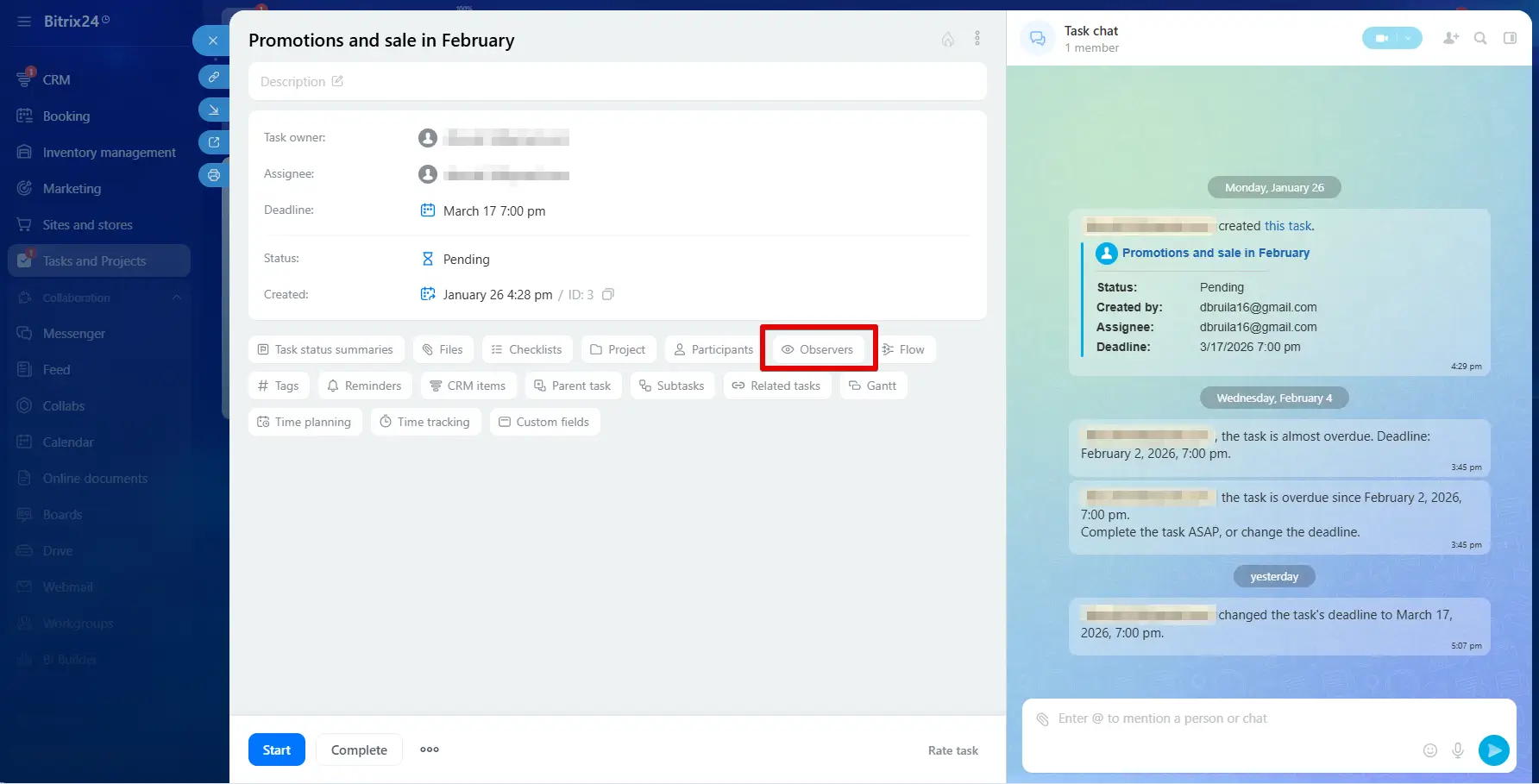
Observers: they are there to watch. They receive notifications but generally do not interfere. This is perfect for upper management who want oversight without micromanagement.
Adding observers to the task
Task Content & Data Fields
A task title is not enough. Use the Rich Text editor to provide clear briefing notes. Utilize Checklists for step-by-step granular control; if a checklist item becomes too big, Bitrix24 allows you to convert that single line into a sub-task with its own deadline. Finally, prioritize the Deadline field over the "High Priority" flame icon.
The "More" Menu
Hidden at the bottom of the task creator is the "More" button—do not ignore it. This is where you activate Time Tracking (estimating hours vs. actuals), bind the task to CRM entities (linking a task to a specific Deal or Client), and set up Parent Tasks to create a hierarchy.
Visualization: Four Ways to See the Same Data
Data is only useful if it is readable. Bitrix24 offers four distinct lenses for your work.
The List View
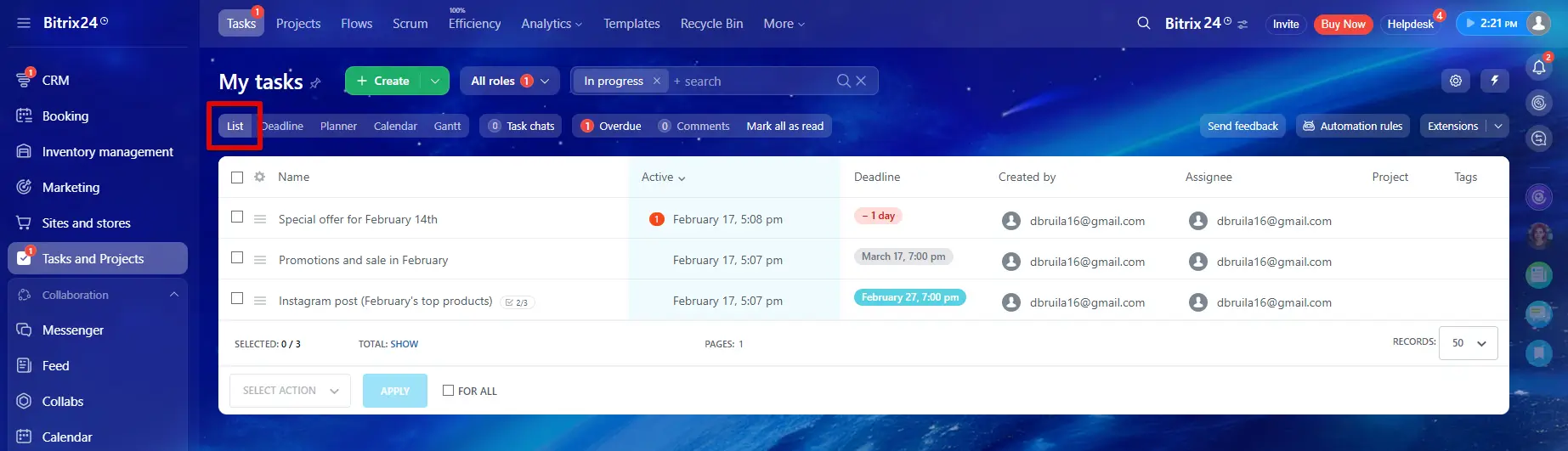
The choice for the analytical mind. Here, you can manage columns, sort by ID or Date, and crucially, perform Bulk Actions. Need to move 50 tasks to a new responsible person or close them all at once? Do it here.
List view of tasks
The Kanban Board
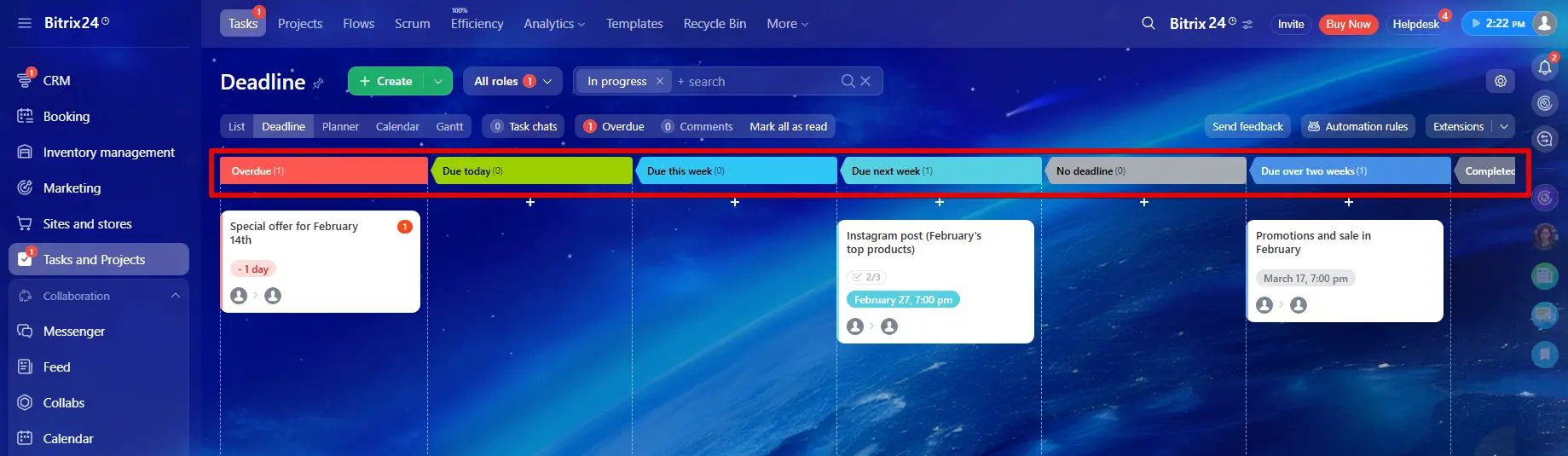
Best for agile workflows. You visualize tasks as cards moving through custom stages (e.g., Pending → In Review → QA → Done). The visual drag-and-drop nature isn't just aesthetic; it can trigger automation robots.
Deadline view for tasks
The Gantt Chart
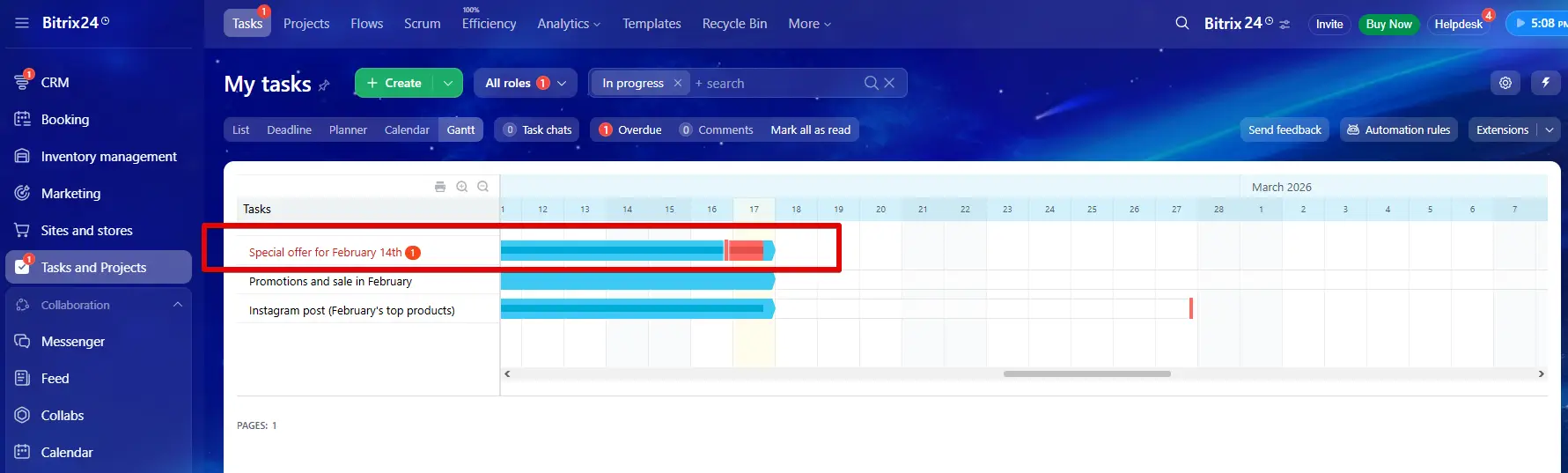
The project manager’s best friend. This visualizes the timeline and, most importantly, Dependencies. You can link tasks (Finish-to-Start, Start-to-Start) so that if one task is delayed, all subsequent tasks automatically shift forward. This view also manages lag and lead times.
Gantt chart view for tasks
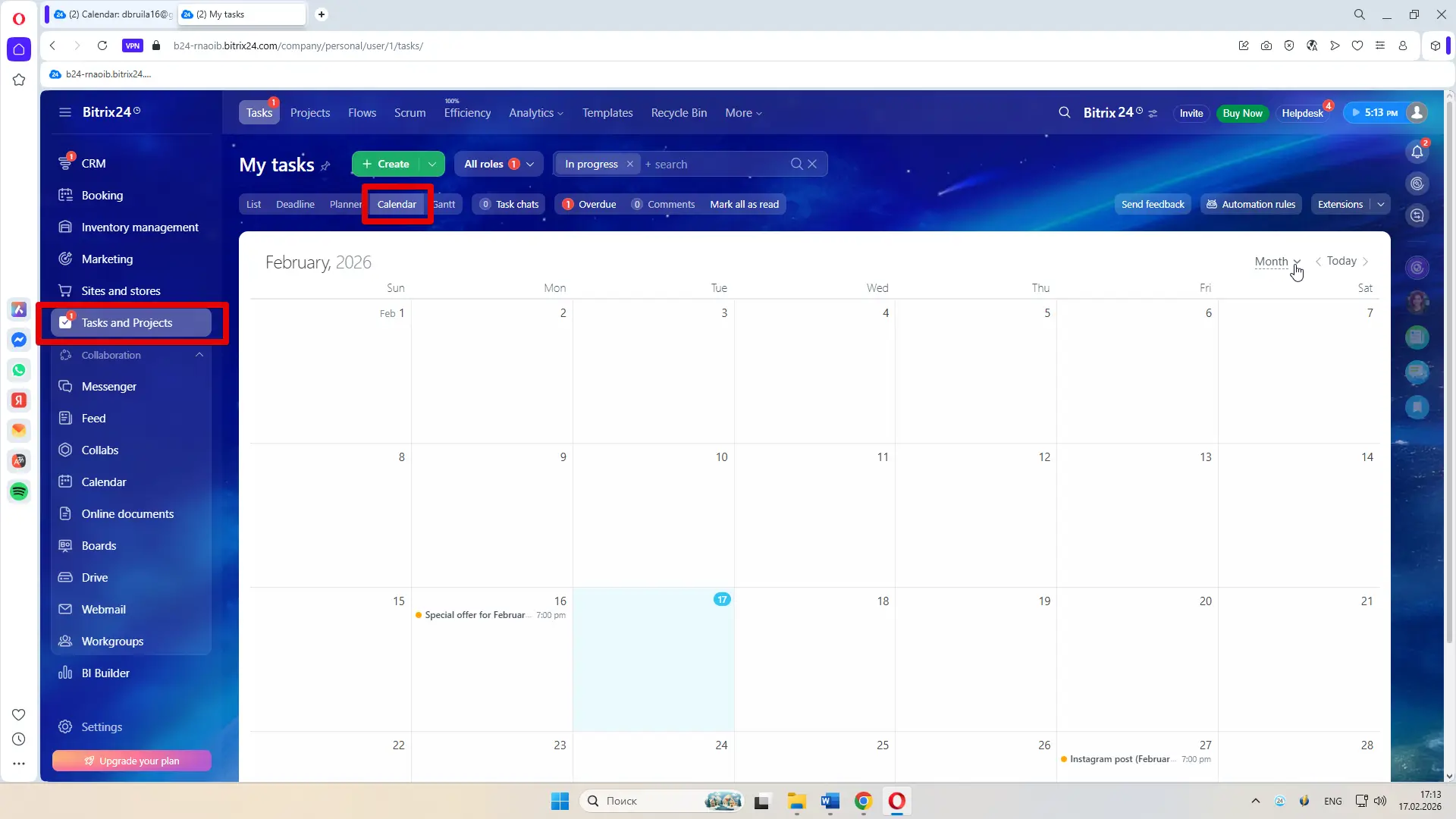
The Calendar View
This is your resource sanity check. It maps tasks onto a calendar grid, allowing you to instantly spot if an employee has five deadlines colliding on the same Friday.
Tasks in Calendar view
Context & Structure: Groups and Projects
Workgroups vs. Projects
The difference is subtle but vital. Workgroups are for continuous departments (e.g., "Marketing," "HR"). Projects are time-bound (e.g., "Website Launch 2026"). When you set project dates, the system protects you: it won't let you set a task deadline that exceeds the project's end date.
The Extranet
Collaboration often requires outsiders. The Extranet allows you to invite freelancers or clients into a specific project. It creates a secure sandbox – they can see tasks and files within that group, but they are completely blind to your internal company structure, CRM, and private chats.
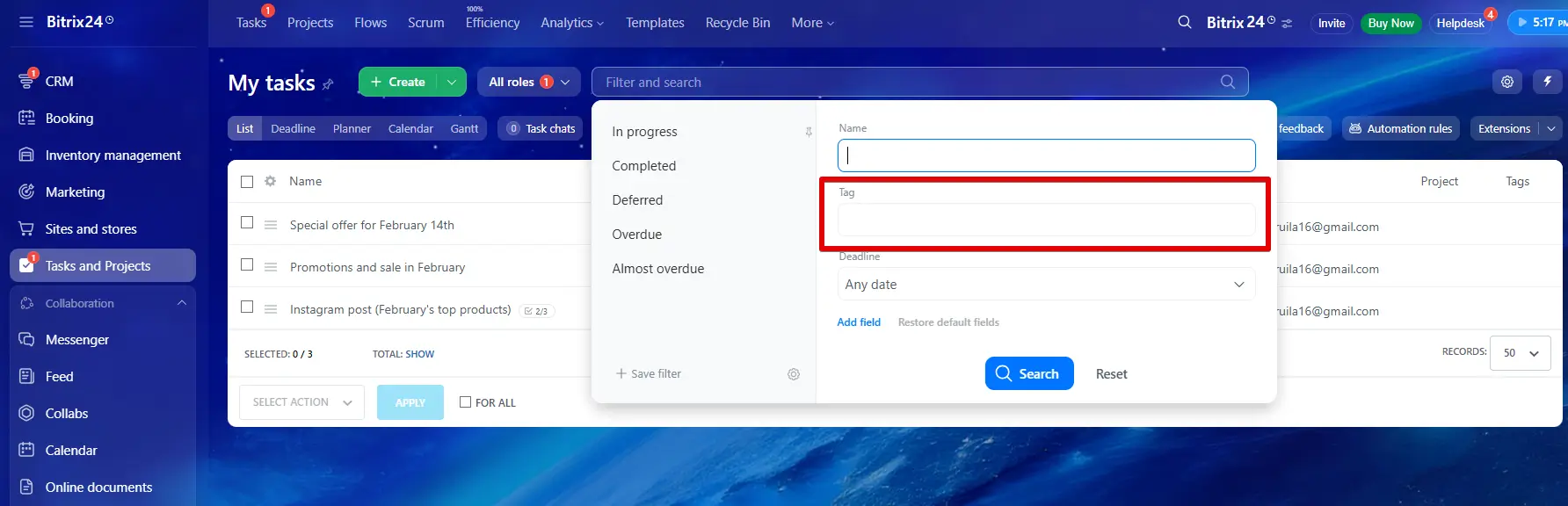
Tags and Filters
As your portal grows, "Smart Search" becomes your lifeline. Learn to save Filter Presets. If you frequently search for "Tasks I am observing that are overdue," save that filter. A coherent tagging system (e.g., #urgent, #bugfix) across the company is also a best practice for easy retrieval.
Search tasks by tag
Workflow Management: Execution & Control
Time Tracking Mechanics
You can't manage what you don't measure. Bitrix24 offers manual entry (typing "2 hours"), but the real power is the Real-time Timer. Employees click "Start" and "Pause" as they work. This data feeds directly into efficiency reports.
Task Status Lifecycle
The standard flow is Pending → In Progress → Completed. However, enable the "Check task upon completion" feature. This adds a crucial step: when an employee finishes, the task goes to "Awaiting Control." The manager must then review it. If it’s lacking, you send it back for revision, creating a quality control loop.
The "Result" Requirement
There is a setting to "Require task status summary." Enable this. It prevents users from closing a task without typing a comment explaining what they actually did. It forces a "Result," not just a checkmark.
Delegation
When forwarding a task, ensure you remain in the loop. The system allows you to delegate a task while automatically keeping yourself as an Observer or Auditor, ensuring you don't lose track of the delegated item.
Automation & Efficiency (The Power User Section)
Task Templates
Stop reinventing the wheel. If you have a report due every Friday, create a Recurring Task Template. You can pre-load these templates with subtasks, checklists, and file attachments so the standard of work remains consistent every time.
Robots and Triggers
This brings your Kanban board to life. You can configure logic such as: IF a task is moved to the "QA" stage, THEN automatically change the Responsible Person to the QA Manager and send them an email. This reduces manual clicking and ensures process adherence.
Agile & Scrum in Bitrix24
Note: Agile/Scrum is a distinct module within Bitrix24 Tasks, designed specifically for software development or iterative teams.
The Scrum Interface
This replaces the standard view with a formal Backlog. Here you define Epics and User Stories, prioritizing work before it ever enters an active workflow.
Sprint Management
You plan Sprints (usually 1-2 weeks). Teams assign Story Points (complexity) rather than hours. Once a sprint concludes, the system provides a retrospective analysis and calculates team velocity, helping you predict future capacity.
Reporting & Performance Analysis
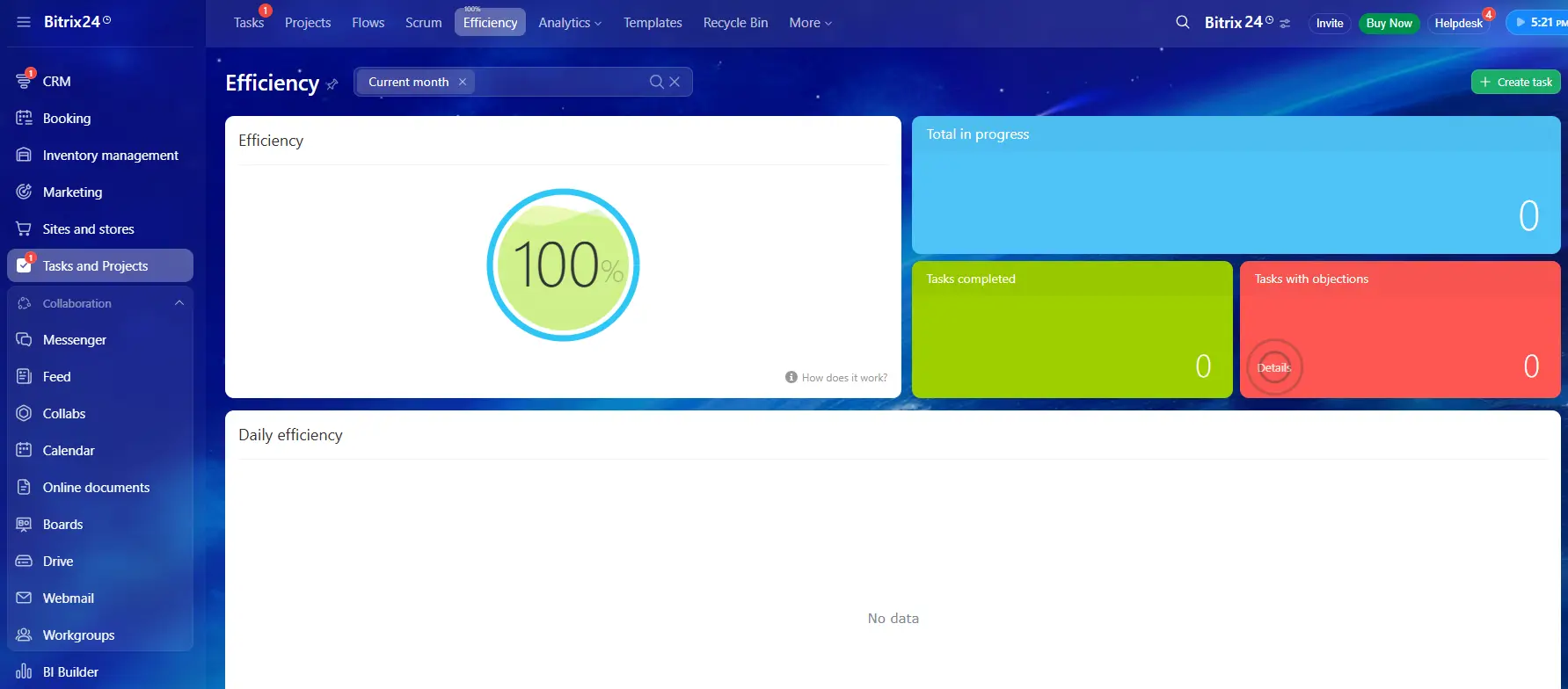
The Efficiency Rating
You will see a percentage (e.g., 85%) on employee profiles. This is an algorithm comparing total tasks against those with violations (overdue or unapproved). Note: A 100% rating is often unrealistic; it usually means the employee isn't being challenged enough. Aim for 85-95%.
Pre-set and Custom Reports
Bitrix24 comes with reports like "Tasks for the Month" and "Resource Tracking." However, the Report Builder is where you gain insight. You can construct custom dashboards to track specific KPIs and export the raw data to Excel/CSV for pivot table analysis.
Performance Evaluation Report Schedule
Integration with CRM
The Sales-Project Bridge
The transition from Sales to Delivery is often where data is lost. Bitrix24 solves this. You can set automation so that when a Deal is won, a Project Group is automatically generated, and a set of onboarding tasks is assigned to the delivery team.
CRM Visibility
Sales teams can view the status of tasks directly from the Client or Company Card. This transparency prevents sales reps from constantly interrupting project managers for updates.
Administration & Access Rights
Permissions and Hierarchy
Not everyone should have the keys to the castle. Define Global Permissions carefully: only Administrators should be able to delete tasks. Regular users should only be able to close them.
Departmental Access
Use the Company Structure chart to define visibility. Managers should automatically see the tasks of their subordinates, but a user in Marketing shouldn't necessarily see the internal tasks of the Legal department.
"Super Admin" Mode
Administrators have a special toggle to view all tasks in the system, regardless of permissions. This is essential for troubleshooting but should be used ethically.
Conclusion & Best Practices
To succeed with Bitrix24, adopt the "Clean Inbox" philosophy. The red counter on your tasks menu indicates items requiring attention (overdue or awaiting review). Teach your team that the goal is to keep that counter at zero.
Common Pitfalls to Avoid:
Over-notification: do not make everyone an Observer on every task. If everything is urgent, nothing is urgent.
Undefined Roles: never create a "orphan" task without a responsible person.
Implementation Checklist:
map your Company Structure;
define Workgroups vs. Projects;
set up recurring templates;
train staff on the "Result" requirement.
Bitrix24 is a robust engine. It requires a skilled driver, but once you master the gears, it will take your business further and faster than you thought possible.
Frequently Asked Questions
How does Bitrix24 task management differ from tools like Trello or Asana?
The primary difference is the ecosystem. Trello and Asana are excellent standalone project tools, but they create data silos. Bitrix24 integrates tasks directly with your CRM, internal chat, Calendar, and Drive. For example, a task in Bitrix24 can be automatically triggered when a Sales Deal reaches a specific stage, or a chat message can be converted into a task with one click. It removes the need to switch between multiple apps to get work done.
Is it possible to track time spent on specific tasks?
Yes. Bitrix24 task management includes a built-in Time Tracker. Employees can click "Start" and "Pause" directly within the task card or the mobile app. This logs actual time spent versus the "Estimated Time" you planned. This data can be exported to Excel for billing clients or analyzing project profitability.
How does the "Efficiency Rating" work for employees?
The Efficiency Rating is an automated metric that tracks how well an employee manages their workload. It starts at 100% and decreases only when "violations" occur. A violation is defined as a task that is overdue or a task that was completed but rejected by the auditor (returned for revision). It provides an objective baseline for performance reviews.
Does Bitrix24 support Agile or Scrum methodologies?
Yes. While the standard view supports Waterfall (Gantt) and Kanban, there is a specialized Scrum mode available in the Tasks section. This allows you to build a Backlog, plan Sprints, assign Story Points instead of hours, and conduct Retrospectives. It is designed specifically for development teams and iterative project management.
Why can't I assign a task to multiple "Responsible" people?
This is a deliberate design choice based on management best practices. If two people are responsible, no one is responsible. Bitrix24 forces you to select one Responsible Person (the owner). However, you can add an unlimited number of Participants (contributors) who can help execute the work, and Observers who can monitor progress without interfering.
Can I invite external clients or freelancers to view tasks without them seeing my CRM?
Yes. Bitrix24 uses a feature called the Extranet. You can create a specific Project Group and invite external users via email. They will work in a secure "sandbox" environment where they can only see the tasks, files, and chats within that specific group. They will generally not have access to your internal company structure, other departments, or your CRM data.
Can I automate recurring tasks?
Absolutely. You can use Task Templates to automate recurring work (e.g., "Weekly Report" generated every Monday at 9 AM). For more advanced workflows, you can use Automation Robots in the Kanban view to automatically change task stages, send emails, or reassign responsibilities based on triggers (like a deadline approaching or a status change).
Related articles
23.07.2026
Bitrix24 CoPilot: The AI Assistant Transforming CRM Productivity
Meet Bitrix24 CoPilot — your AI assistant right inside the CRM!
Delegate your routine tasks: CoPilot assists in drafting emails, summarizing phone calls, and managing task workflows. Learn how this technology can transform your productivity and optimize business processes.
Bitrix24 is a unified digital office that integrates CRM, project management, communications, and automation—unlike Trello, which focuses on the simplicity of Kanban boards. Bitrix24 provides a native solution for complex business processes, including task delegation with roles, CRM integration, and workflow automation, though it does involve a learning curve.