Description of the payment process using the example of placing an order for the purchase the Bitrix24 and IP-PBX Yeastar integration module.
1. Select a product
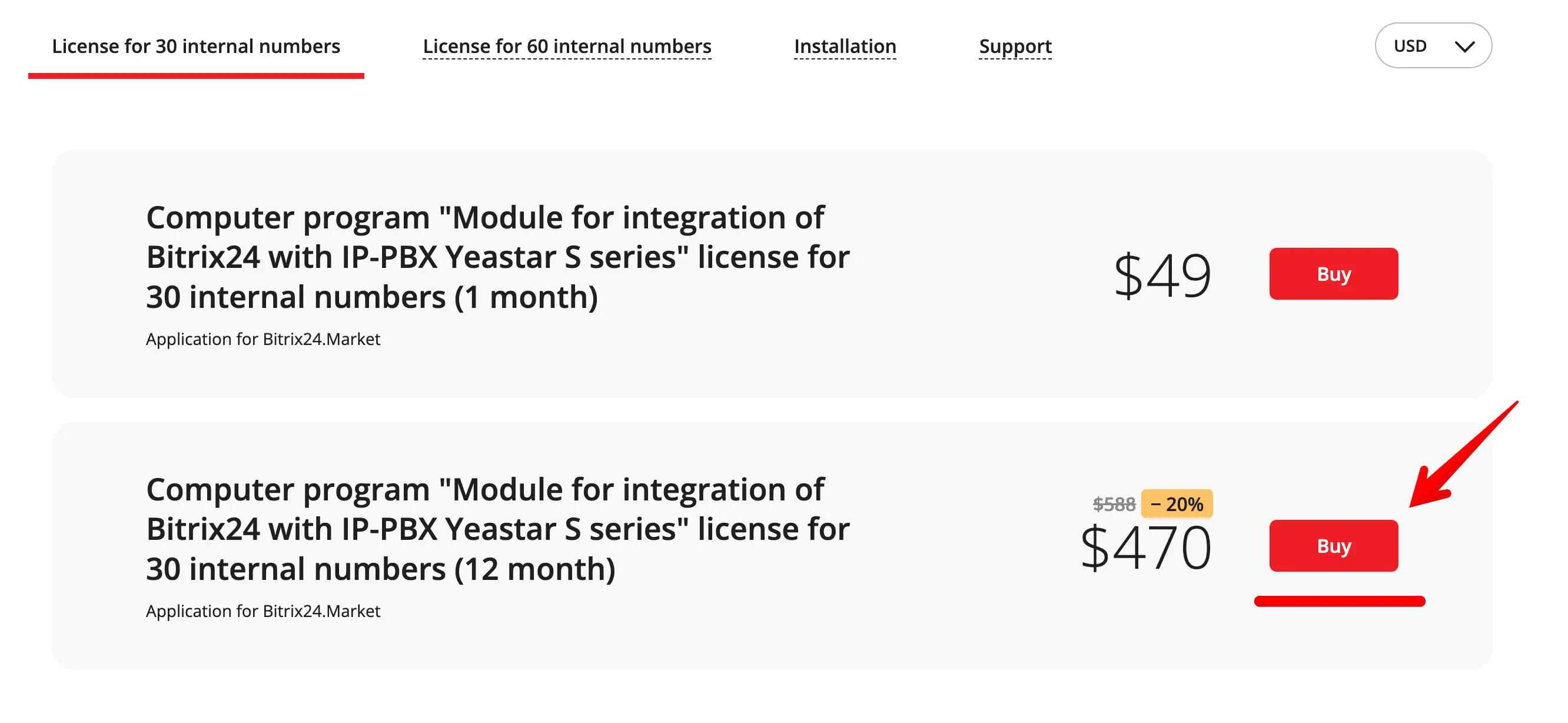
Select the
required product and license type. Select the period for which you want to buy or extend it (if you pay for a year, you will get a 20% discount), and click “Buy”
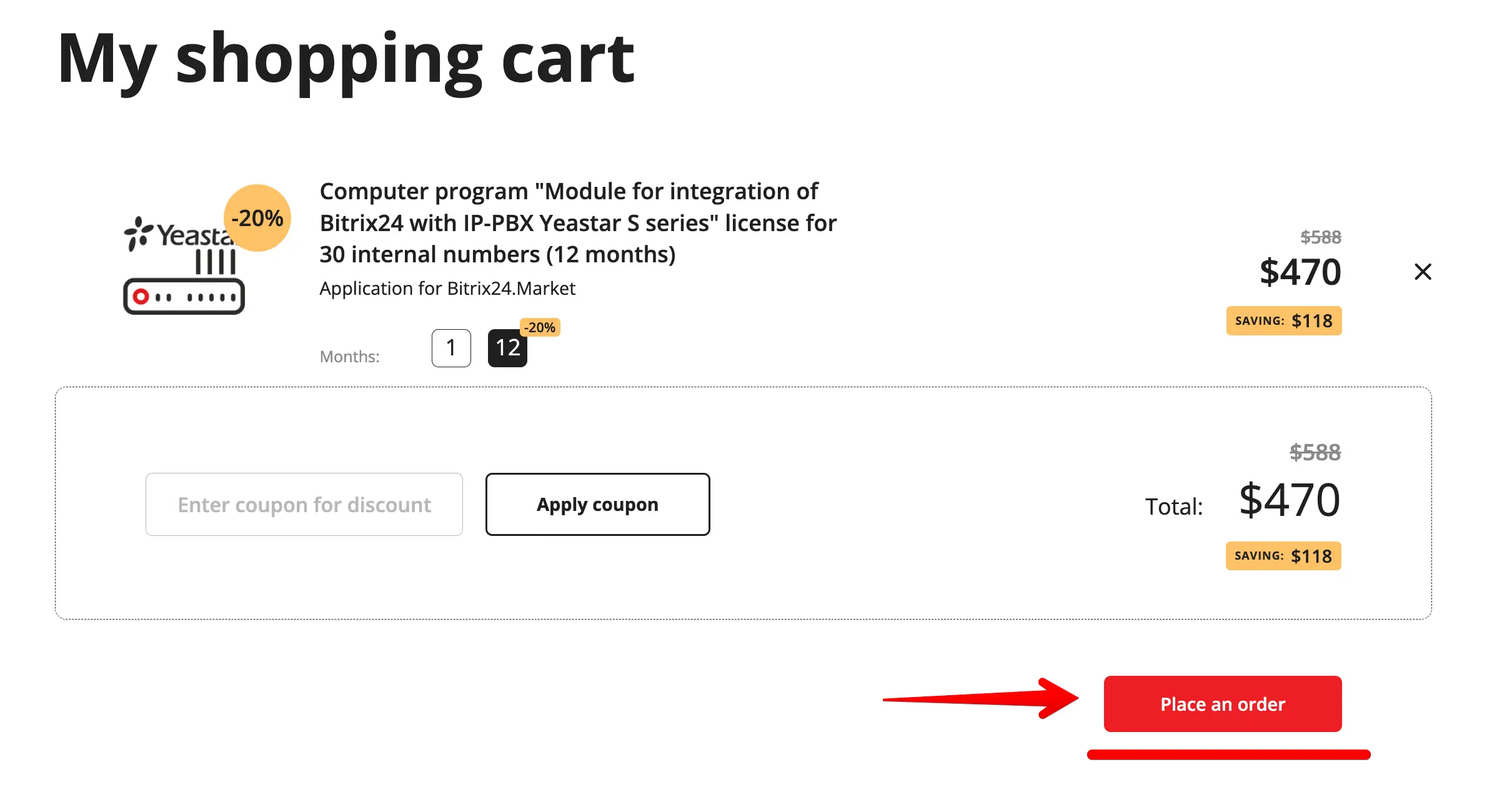
 2. Click "Place an order” in your shopping cart
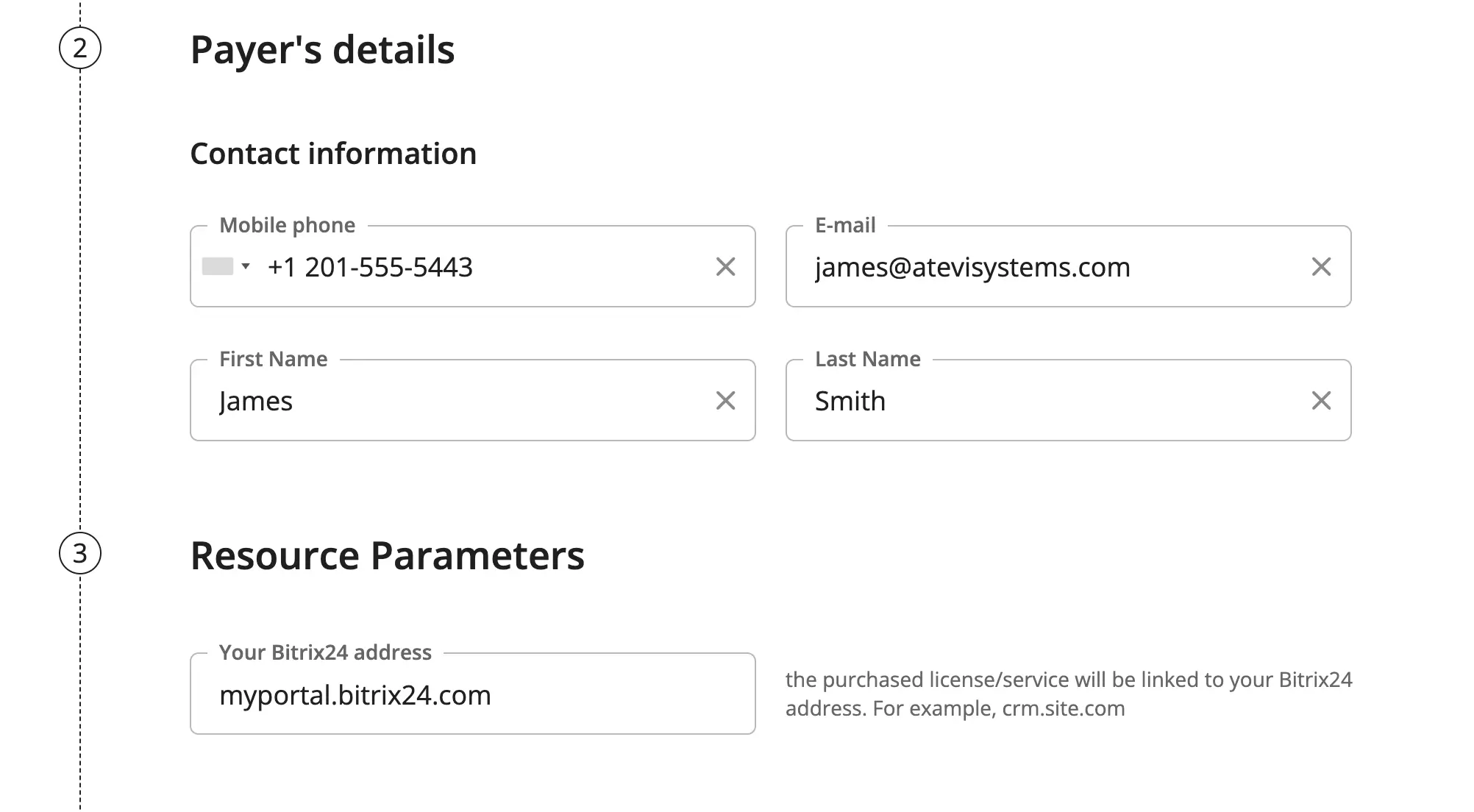
 3. Fill out the order form
On the checkout page in the "Contact information" section, fill out the form with your details.
 Also pay attention to the following important details:
3.1. Make sure to fill in "Your Bitrix24 address" field correctly — it is the value of this
field that will automatically link the app license to your Bitrix24.
Also pay attention to the following important details:
3.1. Make sure to fill in "Your Bitrix24 address" field correctly — it is the value of this
field that will automatically link the app license to your Bitrix24.
3.2. The e-mail address that you enter in the "E-mail" field will be your login on
atevisystems.com . After completing the order, you will be automatically registered
and will receive a password for the access to the site to this e-mail.
3.3. If you have previously completed an order on atevisystems.com , then you need first
to log in with your username (your e-mail address) and password via the "log In"
link in the upper-right corner of the site.
3.4. To successfully complete the order, you need to read the text of the public agreement
for the transfer of non-exclusive property rights (license) to use the software "Computer
Program "Bitrix24 integration Module with the Yeastar S series IP PBX".
Click the document name to open it in a new page.
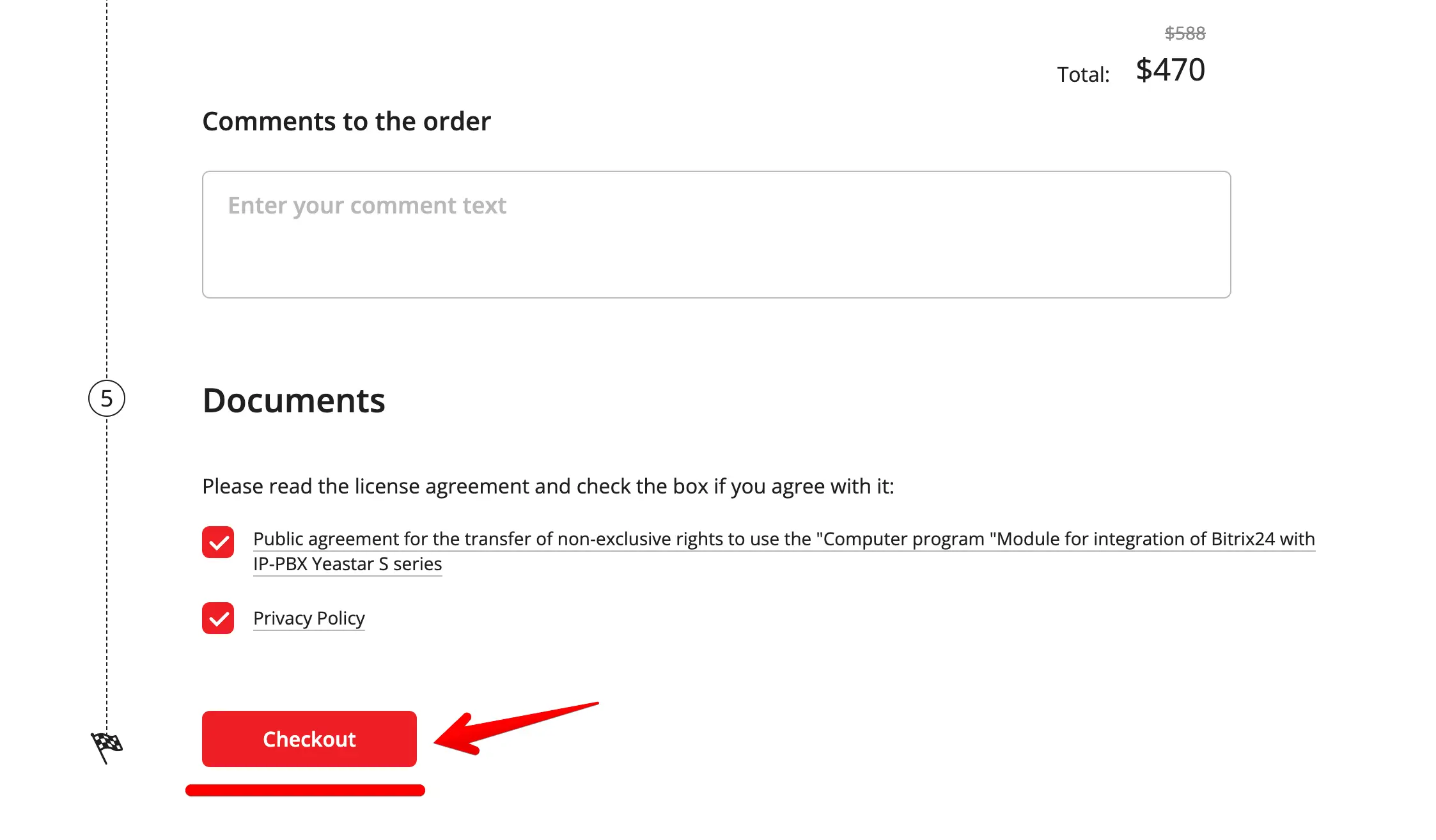
You must confirm your consent to the text of the public contract by checking the
appropriate box and then click the "Checkout" button at the bottom right
4. Complete payment
After the order is completed, you will be directed to the order payment page.
On the opening page click "Pay order”
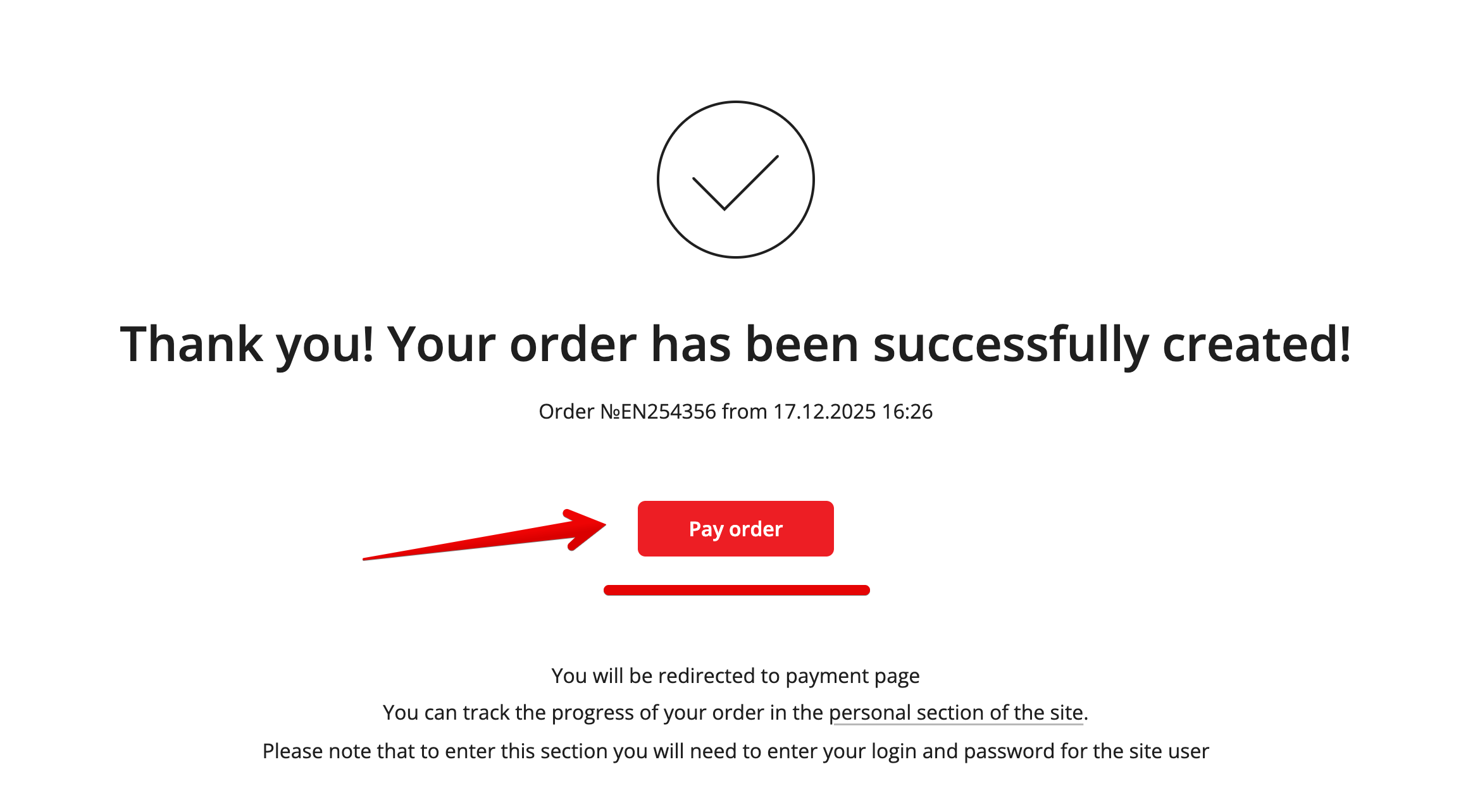
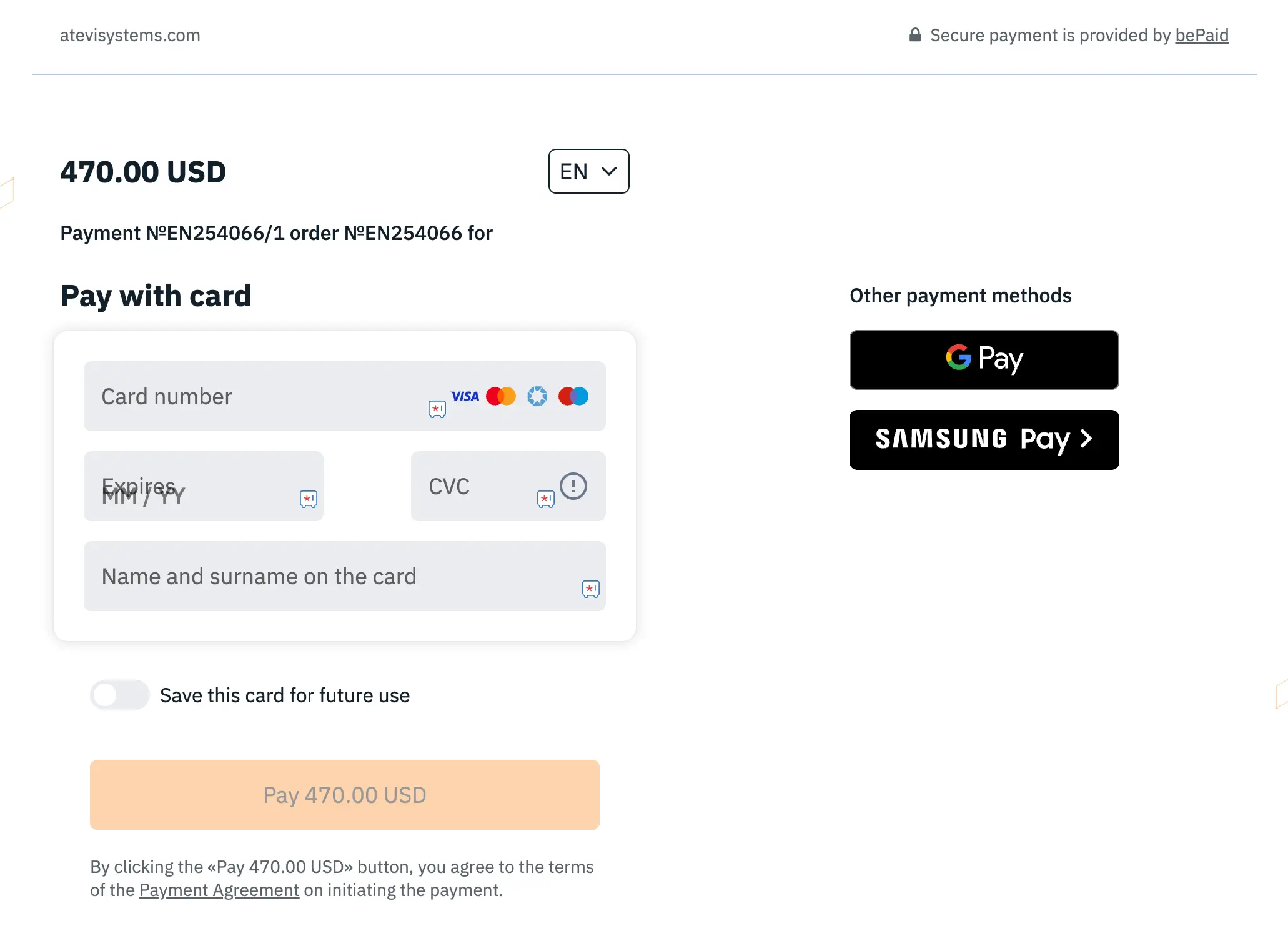
After this, a secure online payment page opens.
Enter your card details or choose to pay via Google Pay, Samsung Pay or Apple Pay.
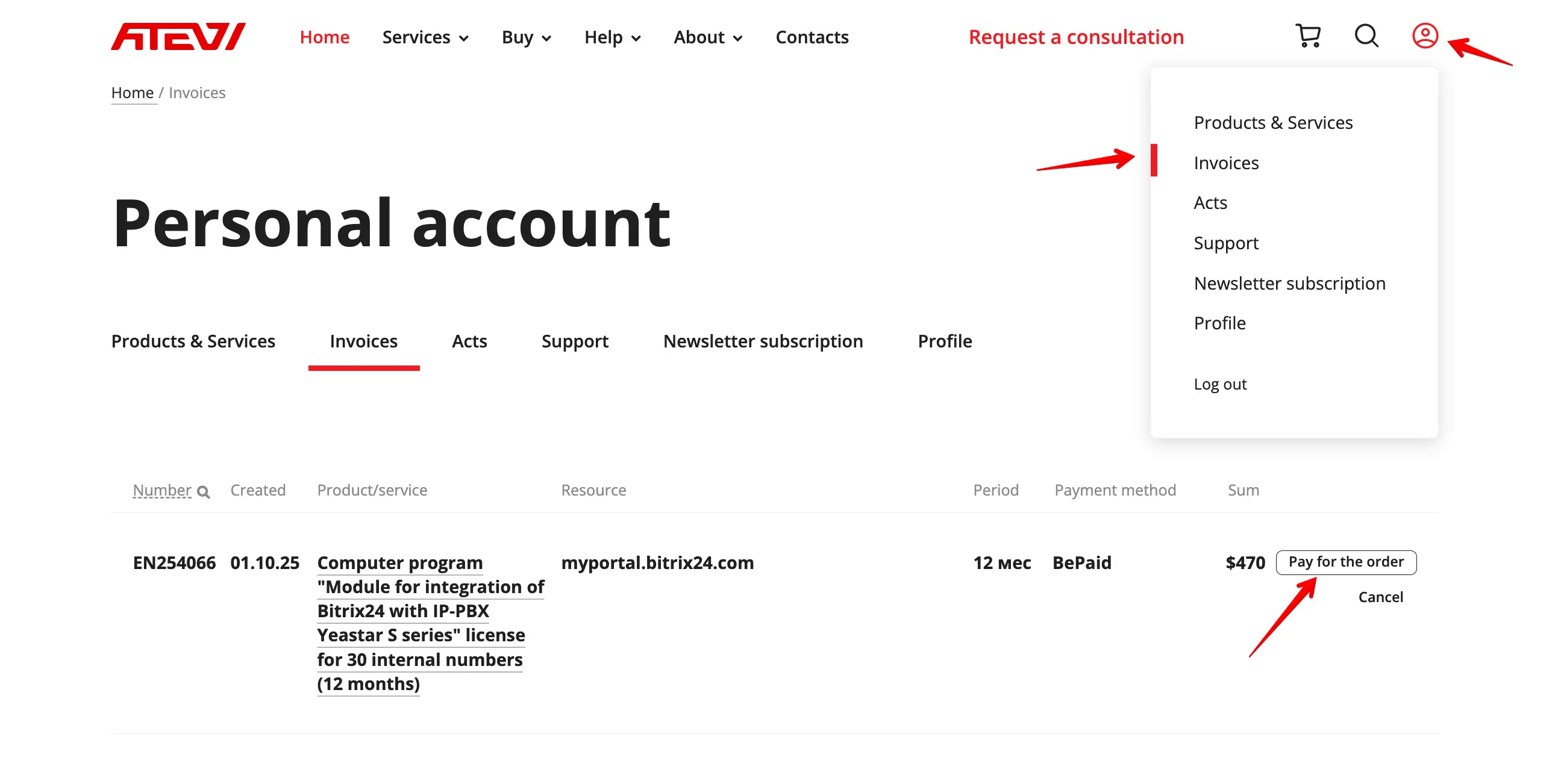
If you accidentally closed the payment page, do not create a new order.
The payment link can be found in your personal account in the
Invoices section.
 5. Checking license activation
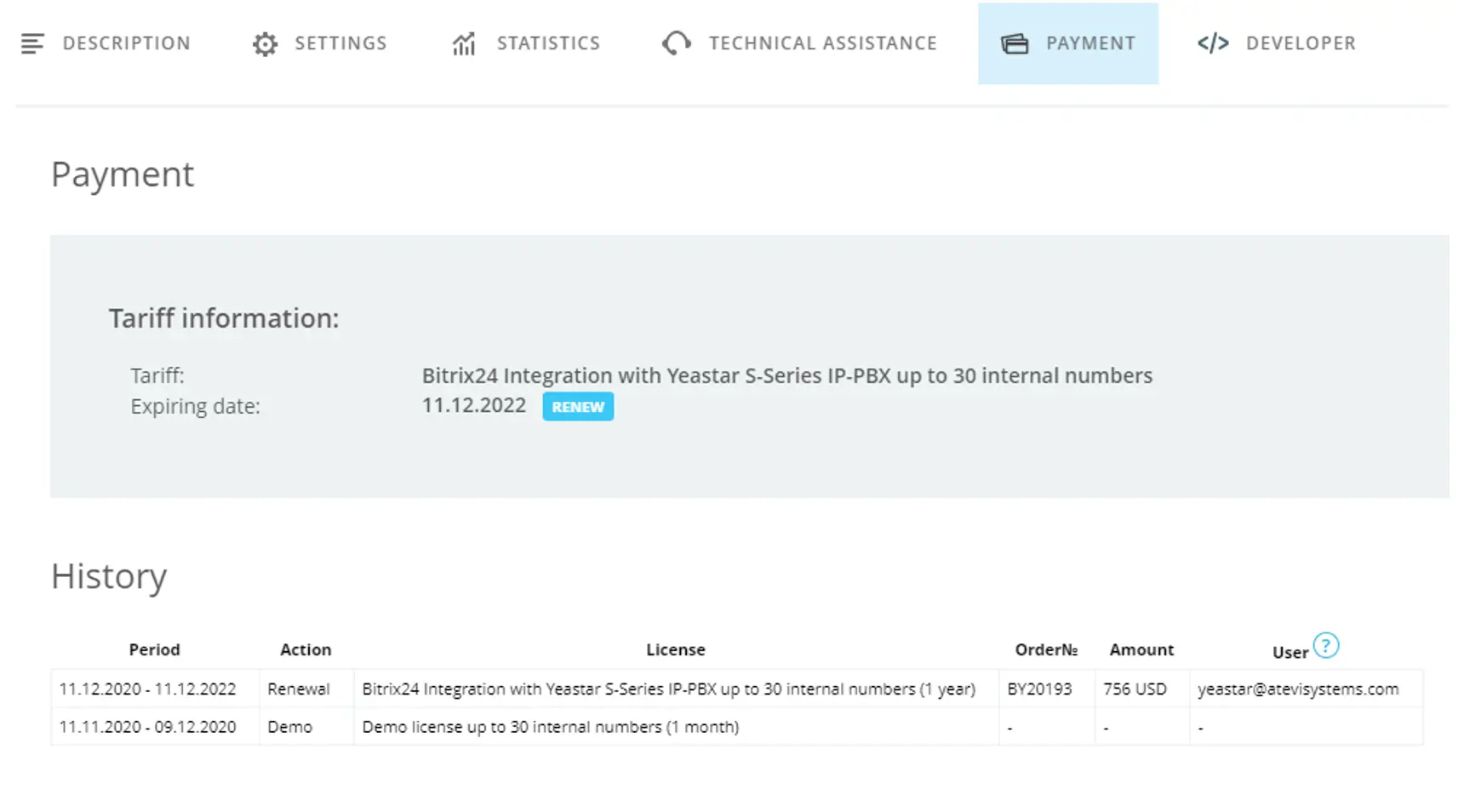
After successful payment, the status of your order will automatically change to "Paid" and the license for the application "Integration with the Yeastar IP PBX" will be automatically activated in your Bitrix24. You can check the status of your license in the app in the Payment tab:
 6. Accounting documents
Within 10 days after receipt of payment for the order, you will receive an Act
(confirmation) with our original seal and signature of the Director to your e-mail address
that you entered when completing the order.
Any questions that may arise when completing an order can be asked via the online chat (at the bottom right of every page of our website) or
contact form.
